Installing ATAK Maps
Quick Start
- Download
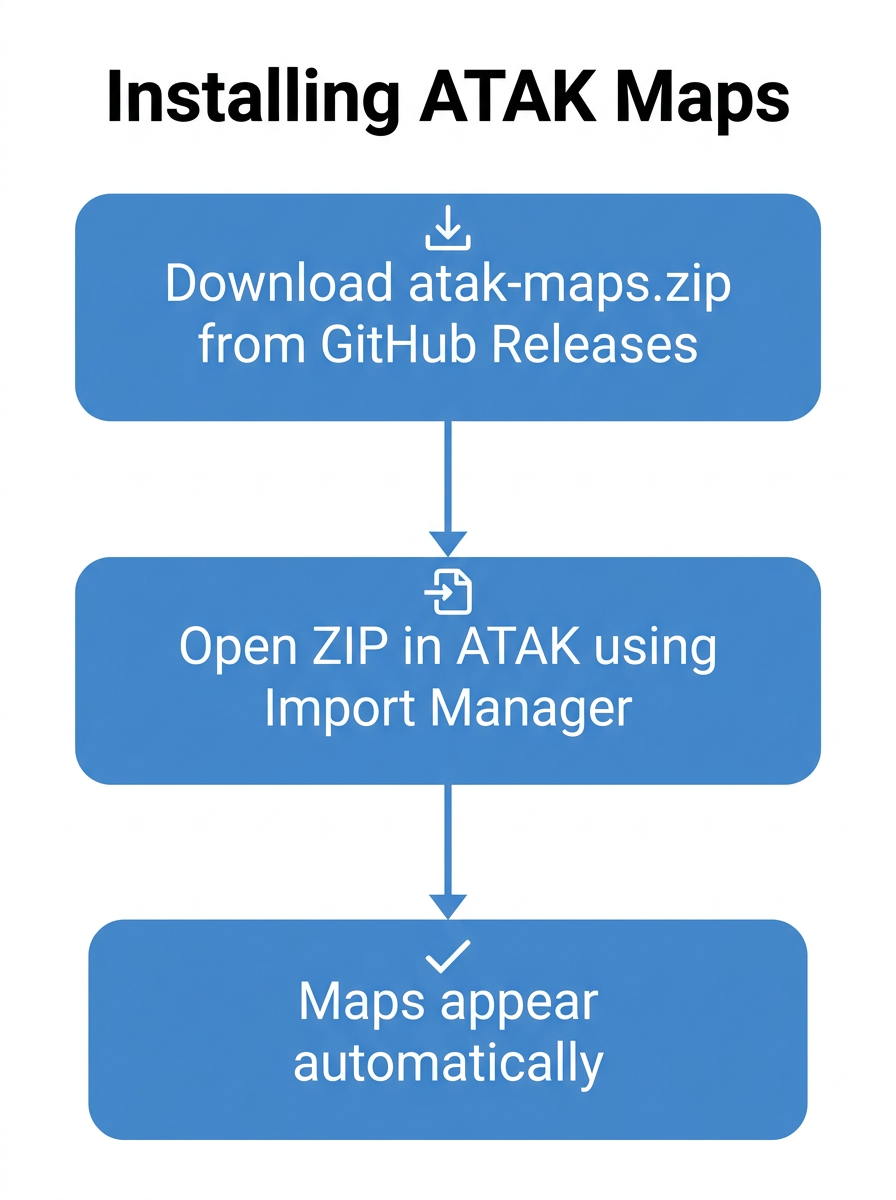
atak-maps.zipfrom the Releases page. - Open the ZIP in ATAK using Import — ATAK places the map files automatically.
- New map sources appear in the map layer selector.
That's it. ATAK's Import feature handles file placement for you.
Using ATAK Import (Recommended)
The easiest way to install maps is through ATAK's built-in Import feature:
- Download
atak-maps.zipfrom the Releases page onto your device. - In ATAK, tap Import (or use your file manager to open the ZIP with ATAK).
- ATAK ingests the ZIP and the map sources populate automatically.
- Check the map layer selector — new sources should be listed.
For transparent overlays, check their placement using the Map Tips below.
What's in the Download
The release ZIP contains all available XML map source files, organized by provider:
- Providers included: Bing, Google, ESRI, USGS, OpenTopo, and others
- Two types of files:
- Base maps — satellite imagery, street maps, topographic maps
- Overlays — transparent layers (flood zones, trails, seamarks, reference grids); most filenames start with
grg_
Manual Installation (Alternative)
If you prefer to place files manually or want to install only specific maps:
Base Maps
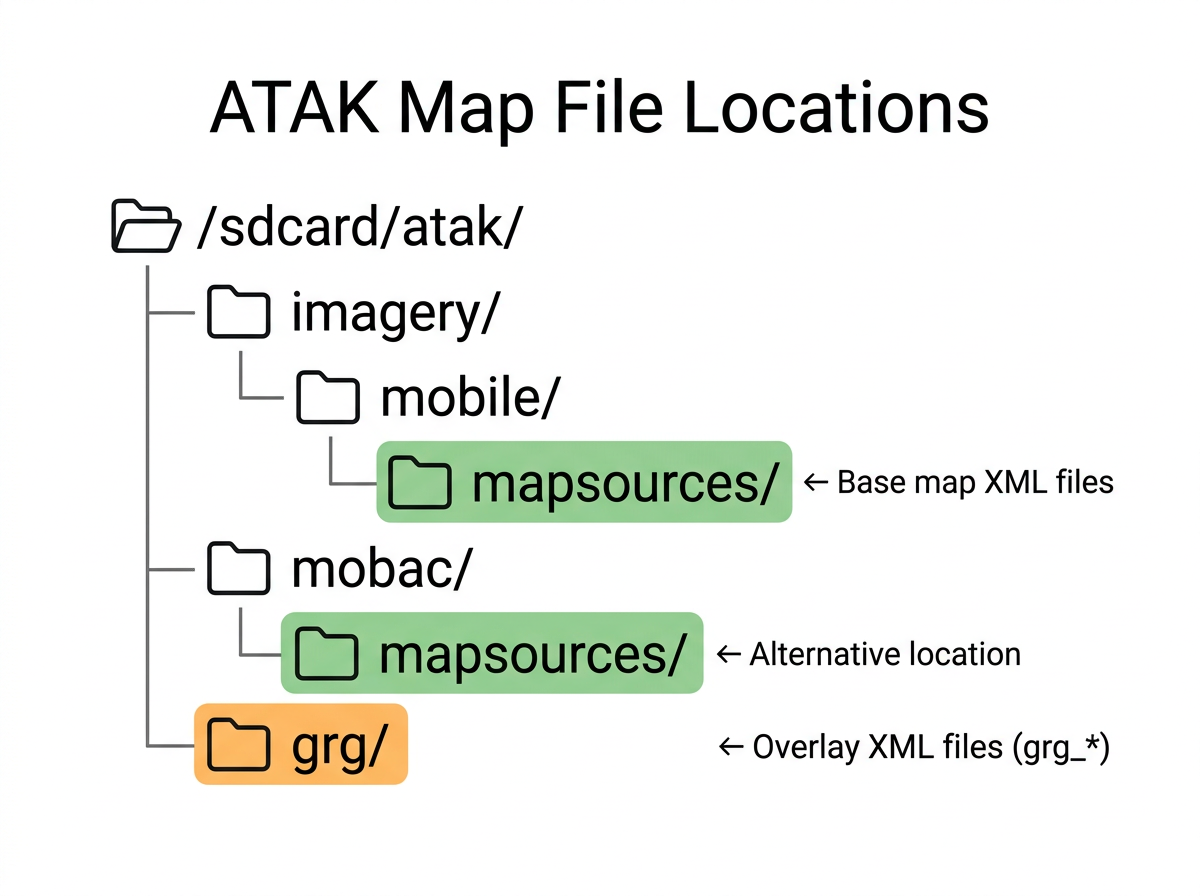
Copy base-map .xml files to:
<storage>/atak/imagery/mobile/mapsources/
<storage> is your device's internal storage root (typically /sdcard or /storage/emulated/0). The alternate directory <storage>/atak/mobac/mapsources/ also works.
Overlays
Copy overlay XML files (the grg_ files in GRG/, or OpenSeaMap seamarks) to:
<storage>/atak/grg/
These appear as overlay layers in ATAK, not base maps. The grg_ prefix is a naming convention; the destination directory determines their use as overlays.
Verify
- Open ATAK.
- Tap the map layer selector (layers icon).
- New map sources should be listed. Select one and confirm tiles load.
- For overlays, check the overlay manager.
ATAK uses file system monitoring, so new map files may appear without restarting the app. If they don't show up, restart ATAK.
Installing Individual Maps
You don't have to install the entire collection:
- Browse the repository folders on GitHub.
- Download just the
.xmlfiles you want. - Either import them via ATAK, or manually place them in the directories above.
Map Tips
Base Maps and GRG Overlays
Place base-map XML files in <storage>/atak/imagery/mobile/mapsources/ and
transparent overlay XML files in <storage>/atak/grg/. Select your base map,
then use Overlay Manager to turn individual GRG overlays on or off.
If an overlay appears only as a base-map choice after import, move its XML to
atak/grg/ and restart ATAK.
Adjusting Imagery Scaling
If symbols or labels on a raster map or GRG overlay appear too small, adjust Overlay Manager → Map Controls → Map Imagery Scaling. This changes imagery scaling for the base map as well as raster overlays; it is not a separate seamark-symbol size control. Available controls can vary by ATAK version.
Using OpenSeaMap
OpenSeaMap has two separate XML sources:
| Source | Install location | Purpose |
|---|---|---|
openseamap_base_chart.xml |
<storage>/atak/imagery/mobile/mapsources/ |
Base chart |
openseamap_seamarks.xml |
<storage>/atak/grg/ |
Transparent seamarks overlay |
Select OpenSeaMap – Base Chart, then enable OpenSeaMap – Seamarks in Overlay Manager. You can toggle seamarks independently or display them over another base map. For small symbols, use the imagery-scaling control described above.
Offline Caching
ATAK automatically caches map tiles you view. To proactively cache an area for offline use:
- In ATAK, open the map layer selector and choose the map source you want to cache.
- Navigate to Map Manager (or long-press on the map layer).
- Select Download and draw a region on the map.
- Choose the zoom levels you need and start the download.
- Cached tiles are stored in SQLite databases on your device and persist when you go offline.
Once cached, those tiles are available with no internet connection.
Troubleshooting
Maps don't appear after import
- Try restarting ATAK.
- If using manual install, confirm files are in the correct directory.
- Check ATAK logs (Settings > Show Log) for errors loading map sources.
Tiles show as black or blank
- The map server may be down or blocking requests.
- Check your internet connection.
- Some sources (notably OpenStreetMap) may restrict access from ATAK. These files are included for reference but may not always work.
Wrong directory (manual install)
| File type | Correct directory | Common mistake |
|---|---|---|
Base maps (.xml) |
atak/imagery/mobile/mapsources/ |
atak/imagery/ (parent dir — won't be scanned) |
| Overlay XMLs (including seamarks) | atak/grg/ |
atak/imagery/mobile/mapsources/ |
Accepted file extensions
| Extension | Description |
|---|---|
.xml |
Standard map source (this is what ATAK-Maps provides) |
.xmle |
Encrypted XML map source |
.bsh |
BeanShell scripted map source |